# Graphical User Interface
## Introduction
FocusStack processes focus-bracketed images in two phases:
* **Project**: Batch processing (alignment/balancing/stacking)
* **Retouch**: Layer-based refinement
> [!NOTE]
> Advanced processing details in [main documentation](main.md).
The batch processing supports image alignment, color and luminosity balance, vignetting removal,
noisy pixel masking.
## Starting
* The python package can be installed from [PyPI](https://pypi.org/project/shinestacker/) using ```pip```:
```console
> pip install shinestacker
```
Onace installed, the GUI app can start either from a console command line :
```console
> shinestacker
```
* The app can be dowloaded from the [releases page](https://github.com/lucalista/shinestacker/releases):
- Windows: as installer or ```zip``` archive for local installation
- macOS: as ```dmg``` disk image, where the app can be dragged to the Application folder
- Linux: as ```tar.gz``` archive
The GUI has two main working areas:
* *Project*
* *Retouch*
Switching from *Project* to *Retouch* can be done from the *ShineStacker* main menu.
## Project area
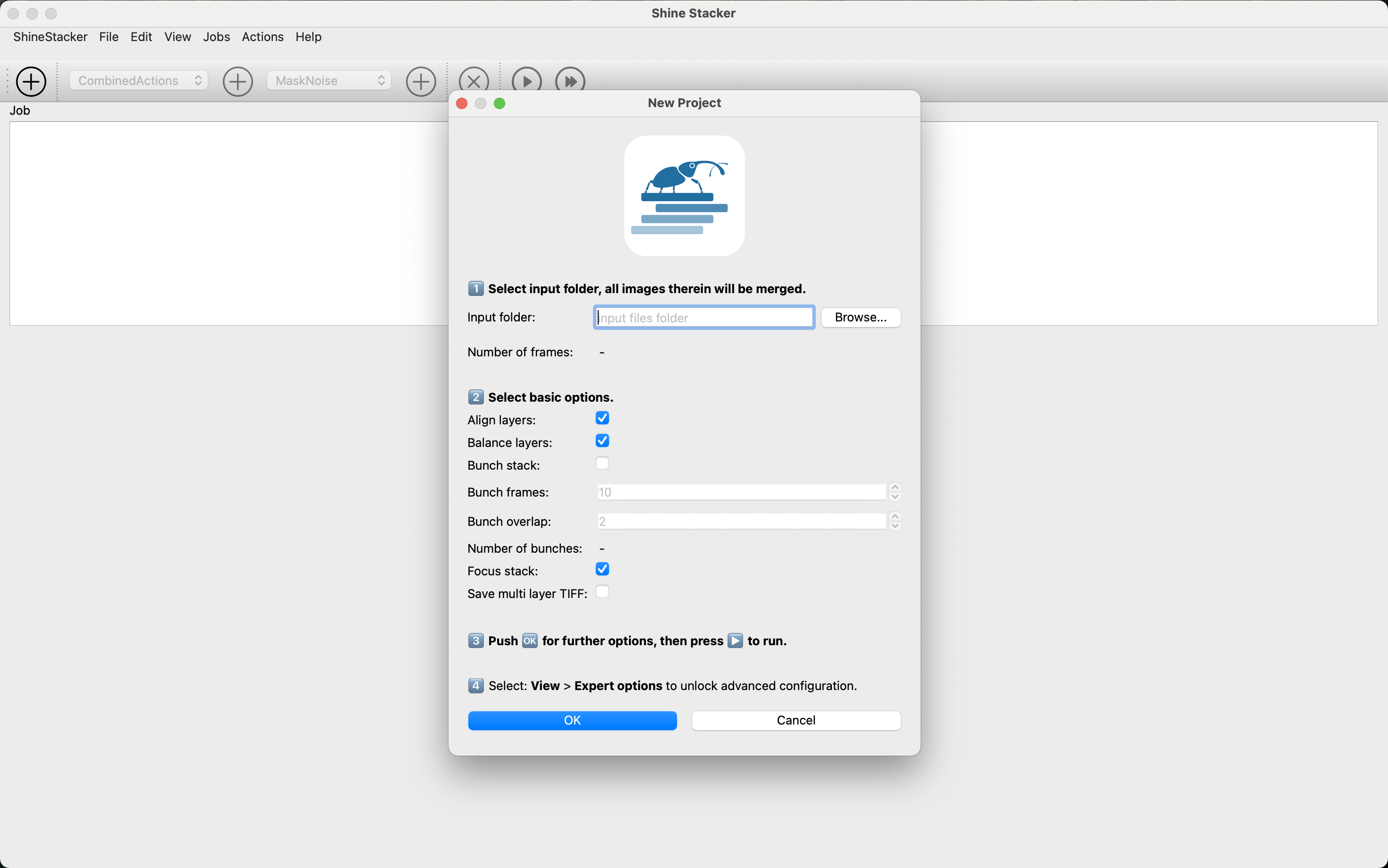
When the app starts, it proposes to create a new project.
 ### Creating Projects
1. Select source folder (JPEG/TIFF 8/16-bit)
2. Configure job actions (auto-saved in project file)
3. Run processing:
- Real-time logs & progress bar
- Thumbnail previews for each stage
### Creating Projects
1. Select source folder (JPEG/TIFF 8/16-bit)
2. Configure job actions (auto-saved in project file)
3. Run processing:
- Real-time logs & progress bar
- Thumbnail previews for each stage
 > **Large Set Tip**: For 100+ images:
> - Split into 10-15 image "bunches"
> - Set number of overlapping frame from consecutive bunches
> - Combine intermediate results later
The newly created project consists of a single job that contains more actions.
Each action produces a folder as output that has, by default, the action's name.
Some actions can be combined in order to produce a single intermediate output (alignment, balancing, etc.).
> **Pro Tip**: Duplicate jobs when processing similar image sets to save configuration time. You can run multiple jobs in sequence.
It is possible to run a single job, or all jobs within a project.
> **Large Set Tip**: For 100+ images:
> - Split into 10-15 image "bunches"
> - Set number of overlapping frame from consecutive bunches
> - Combine intermediate results later
The newly created project consists of a single job that contains more actions.
Each action produces a folder as output that has, by default, the action's name.
Some actions can be combined in order to produce a single intermediate output (alignment, balancing, etc.).
> **Pro Tip**: Duplicate jobs when processing similar image sets to save configuration time. You can run multiple jobs in sequence.
It is possible to run a single job, or all jobs within a project.
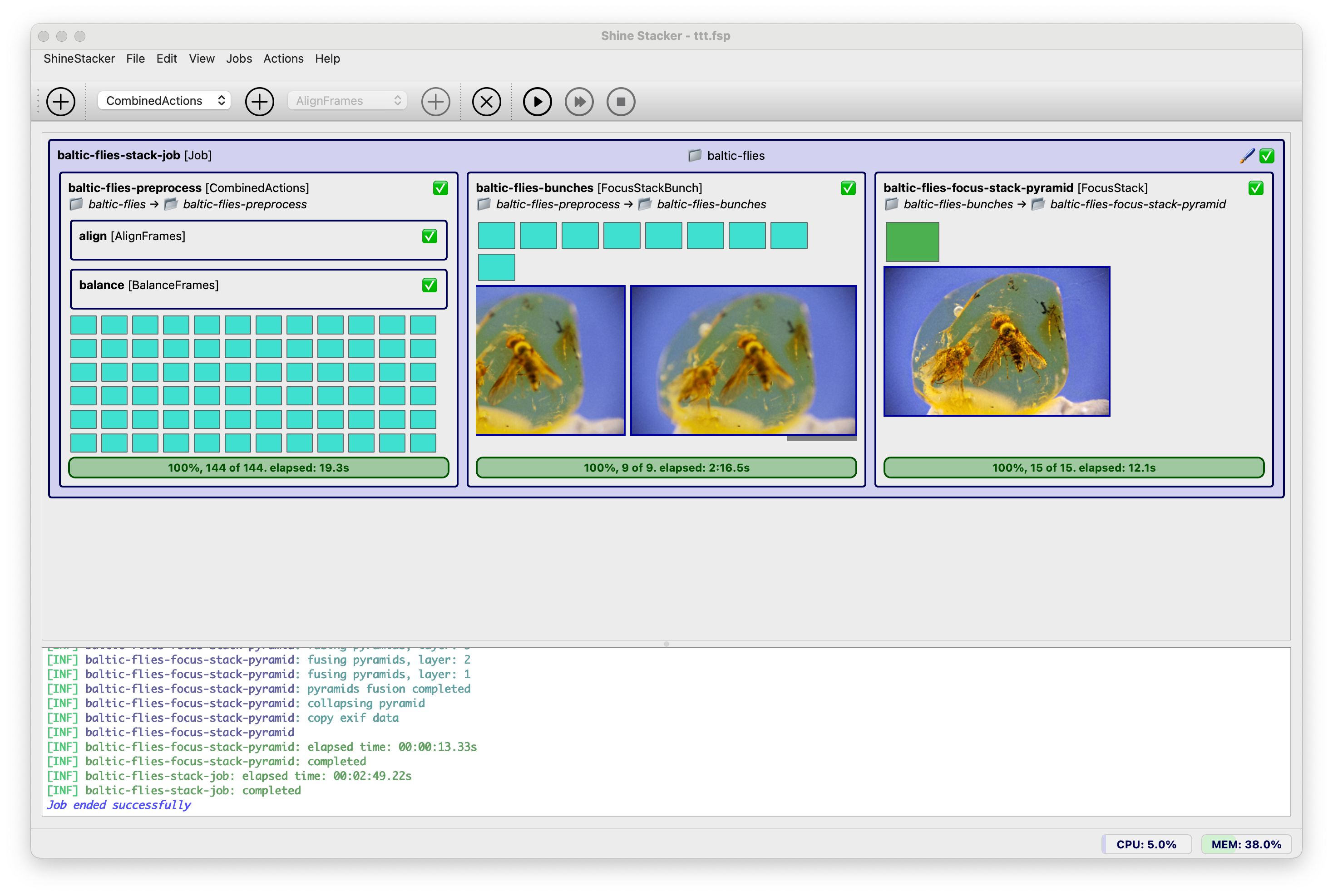 ### Project Run Tabs
1. Job progress bar with CPU and RAM usage monitor
2. Real-time log viewer
3. Retouch button (enabled after processing)
When the job finishes, a *Retouch* button is enabled, which opens the output image into the retouch area.
## Retouch area
### Project Run Tabs
1. Job progress bar with CPU and RAM usage monitor
2. Real-time log viewer
3. Retouch button (enabled after processing)
When the job finishes, a *Retouch* button is enabled, which opens the output image into the retouch area.
## Retouch area
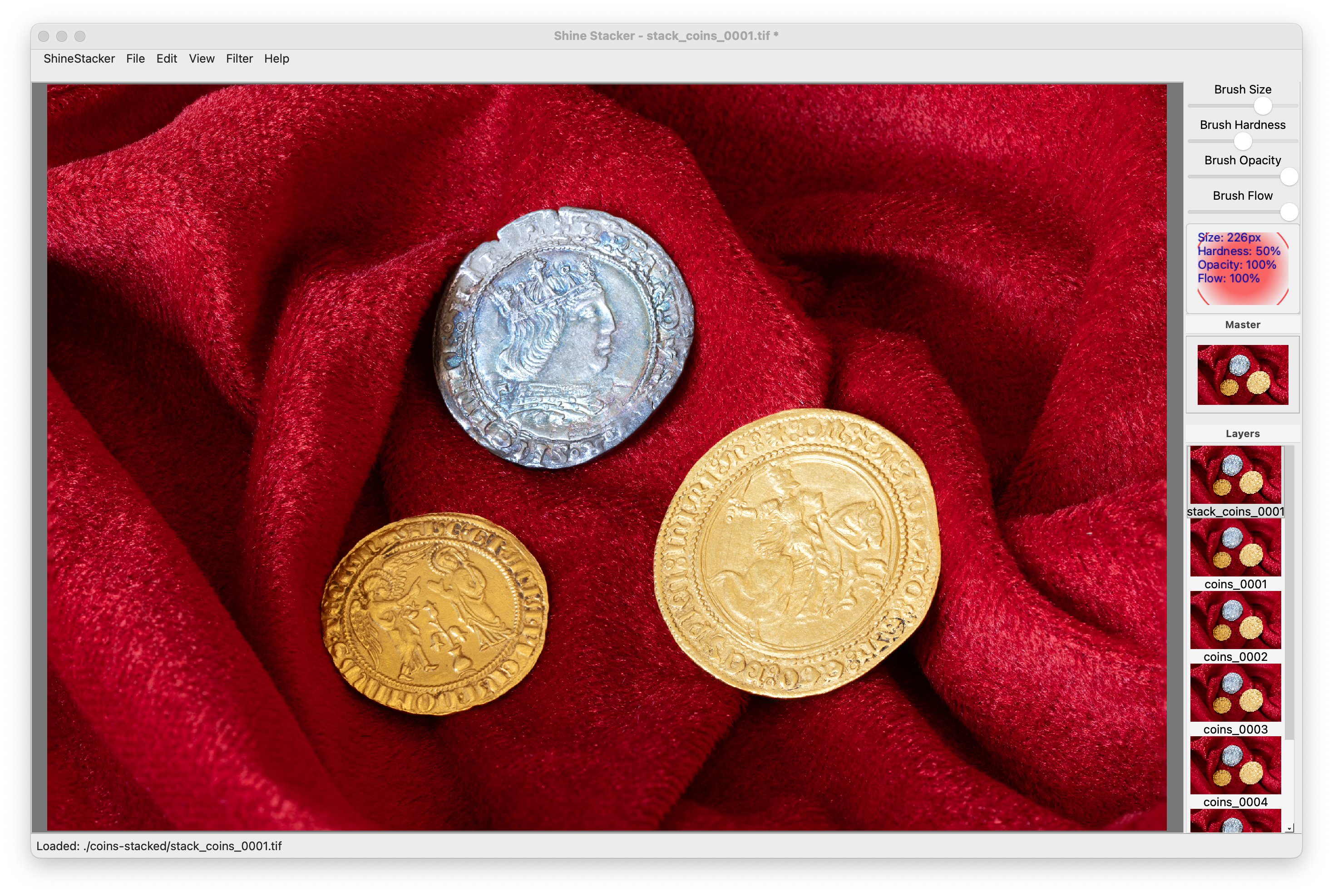 ### Brush Properties
Adjust in the top toolbar:
- **Size**: Brush diameter (px)
- **Hardness**: Edge softness (0-100%)
- **Opacity**: Paint transparency
- **Flow**: Paint accumulation rate
> 💡 Pro Tip: Use low opacity/flow (20-40%) for subtle corrections
### Retouch Workflow
1. **Navigate**:
- Zoom/pan to defect area
- Toggle between master/source (`X`)
2. **Correct defects/artifacts**:**:
- Select source layer with clean area
- Adjust brush properties (size/hardness/opacity)
- Paint over defects
- Use `Ctrl+Z` to undo strokes
3. **Verify**:
- Toggle master view (`M`) to check results
- Compare before/after with `L`/`M` toggle
4. **Filters**:
- Improve the final image with sharpening, denoise and color balance
5. **Export**:
- ✅ Final image: Single TIFF/JPEG
- 🗂️ Editable: Multilayer TIFF (large)
| Action | Shortcut |
|---------------------|---------------------------|
| Zoom in/out | `Ctrl` + `+`/`- or mouse wheel or pinch on touchpad |
| Reset view | `Ctrl` + `0` |
| Pan | `Space` + mouse drag or two fingers on touchpad |
| Prev./next layer | `Up`/`Down` arrows |
| View master layer | `M` |
| View source layer | `L` |
| Toggle master ↔ layer | `T` |
| Temp. toggle master ↔ source | `X` |
See help menu for complete list of shortcuts.
**Export Formats**:
- Single TIFF: Final image (highest quality)
- Single JPEG: For web and quick preview (lower quality)
- Multilayer TIFF: Preserves all layers (large file)
**EXIF metadata**:
* EXIF data can be imported from source images and saved with final file.
### Brush Properties
Adjust in the top toolbar:
- **Size**: Brush diameter (px)
- **Hardness**: Edge softness (0-100%)
- **Opacity**: Paint transparency
- **Flow**: Paint accumulation rate
> 💡 Pro Tip: Use low opacity/flow (20-40%) for subtle corrections
### Retouch Workflow
1. **Navigate**:
- Zoom/pan to defect area
- Toggle between master/source (`X`)
2. **Correct defects/artifacts**:**:
- Select source layer with clean area
- Adjust brush properties (size/hardness/opacity)
- Paint over defects
- Use `Ctrl+Z` to undo strokes
3. **Verify**:
- Toggle master view (`M`) to check results
- Compare before/after with `L`/`M` toggle
4. **Filters**:
- Improve the final image with sharpening, denoise and color balance
5. **Export**:
- ✅ Final image: Single TIFF/JPEG
- 🗂️ Editable: Multilayer TIFF (large)
| Action | Shortcut |
|---------------------|---------------------------|
| Zoom in/out | `Ctrl` + `+`/`- or mouse wheel or pinch on touchpad |
| Reset view | `Ctrl` + `0` |
| Pan | `Space` + mouse drag or two fingers on touchpad |
| Prev./next layer | `Up`/`Down` arrows |
| View master layer | `M` |
| View source layer | `L` |
| Toggle master ↔ layer | `T` |
| Temp. toggle master ↔ source | `X` |
See help menu for complete list of shortcuts.
**Export Formats**:
- Single TIFF: Final image (highest quality)
- Single JPEG: For web and quick preview (lower quality)
- Multilayer TIFF: Preserves all layers (large file)
**EXIF metadata**:
* EXIF data can be imported from source images and saved with final file.